by vellorecity | Dec 8, 2025 | How to apply, News
Service Code: DBL-402 | Department: Directorate of Boilers
Purpose:
The Renewal of License under Boilers Act service enables companies to renew their existing boiler licenses through the e-District portal. This service is designed for:
– Industrial companies with expiring boiler licenses – Manufacturing units requiring license renewal – Business establishments with registered boilers – Authorized representatives handling boiler compliance
Required Information:
Mandatory Search Criteria: Boilers Makers Number/Registration Number of existing boiler
Special Requirements:
– Existing Registration: Must have previously registered boiler – Automatic Data Retrieval: System populates boiler details automatically – Document Upload: Previous license copy required – Payment Method: Bank challan payment system – Operator Assistance: Requires operator login for application
Step-by-Step Renewal Process:
1. Visit the Portal: Login to e-Sevai Tamil Nadu portal as Operator
2. Navigate to Service: Click Services → Directorate of Boilers → DBL-402 Renewal of License under Boilers Act
3. Click Proceed: Review service description and click Proceed
4. Enter Registration Details: – Enter Boilers Makers No/Registration No. (Mandatory) – Click Get Details
5. Verify Boiler Information: System automatically displays: – Registration No of Boiler – Boiler Rating and Type of boiler – Boiler Makers No. and Year of Manufacture – Owner Name and Contact Details – Boiler specifications and location details
6. Update Contact Information: Modify if required: – Phone/Landline No. with STD Code – Email Id – Mobile Number
7. Submit Application: Click Submit to generate application number
8. Upload Required Documents: – Previous Licence copy (Mandatory) – Other Documents (if any) – Supported formats: PDF, JPEG, JPG, PNG – File size limits: Documents 200KB, Photos 50KB
9. Make Payment: – Payment Type: Challan – Enter Challan No. and Challan Date – Government Fees + Service Charge (₹25) – Upload Challan Copy – Click Make Payment and Confirm Payment
10. Download Acknowledgement: Click Print Receipt for acknowledgement
Document Requirements:
– Previous Licence copy: Current boiler license certificate – Other Documents: Any additional supporting documents
Payment Details:
– Government Fees: Variable based on boiler specifications – Service Charge: ₹25 fixed processing fee – Payment Method: Bank challan payment required
After Submission:
– Application Tracking: Check status under Submitted Applications – Approval Process: Application reviewed by deputy director – Certificate Generation: Renewed certificate issued upon approval – Digital Certificate: Downloadable from operator desk
Downloading Renewed Certificate:
1. Check Status: Go to Check Status section 2. Enter Application Number: TN-XXXXXXXXXXXX 3. Click Search: View application details 4. Download Certificate: Click Download certificate link when status shows “Application Approved”
Important Notes:
– Timely Renewal: Apply before license expiry to avoid penalties – Automatic Data: Boiler details auto-populated from existing registration – Document Requirement: Previous license copy mandatory for renewal – Payment Method: Bank challan payment required for government fees – Service Charge: ₹25 fee for processing – Validity Period: Renewed certificate valid for specified period – Safety Compliance: Must continue to meet Indian Boilers Act, 1923 requirements – Application Tracking: Monitor status through Check Status feature – Certificate Conditions: Renewed license has specific usage conditions and safety requirements
Apply Online: https://tnedistrict.tn.gov.in
Assistance: Visit your nearest e-Sevai / CSC Centre
This guide is based on the Tamil Nadu e-District User Manual (DBL-402). Government of Tamil Nadu, 2017.
by vellorecity | Dec 1, 2025 | How to apply, News
Service Code: DBL-401 | Department: Directorate of Boilers
Purpose:
The Registration of License under Boilers Act service enables companies and industries to register their boilers for legal operation through the e-District portal. This service is designed for:
– Industrial companies using boilers in their operations
– Manufacturing units with boiler installations
– Business establishments requiring boiler registration
– Authorized representatives handling industrial compliance
Required Information:
Mandatory Application Details:
Company Details:
– Full name of the Company
– Company Address (State, Taluk, Street details)
Boiler Technical Specifications:
– Boiler Makers No. and Name of Boiler Maker
– Place of Make and Year of Make
– Rating (Total Heating surface Area in Sq.m.)
– Working pressure (in kg/cm2)
– Type of boiler and Sub Type of Boiler
– Evaporation Capacity (kg/hr)
– Steam pipeline length in meters
– Nominal Bore specifications
Special Requirements:
– Document Submission: Multiple technical forms required
– Payment Method: Bank challan payment system
– Technical Compliance: Must meet boiler safety standards
– Operator Assistance: Requires operator login for application
Step-by-Step Application Process:
1. Visit the Portal: Login to [e-Sevai Tamil Nadu](https://tnedistrict.tn.gov.in) portal as Operator
2. Navigate to Service: Click on Services – Directorate of Boilers – DBL-401 Registration of License under boilers act
3. Click Proceed: Review service description and click Proceed
4. Fill Application Form: Complete all mandatory fields (*):
– Company Details (name, address)
– Contact Details (phone, email)
– Boiler Technical Specifications (comprehensive details)
5. Submit Application: Click Submit to generate application number
6. Choose Document Delivery Method:
– Attachment (upload soft copies) OR
– Physical (send documents by post)
7. Upload Documents (if choosing Attachment):
– Form No. I or Form No. XVI
– Form No. II
– Form No. IIA, IIB, IIC
– Form No. IV or IV A
– Drawings
– Other Documents
– Supported formats: PDF, JPEG, JPG, PNG
– File size limits: Documents 200KB, Photos 50KB
8. Make Payment:
– Payment Type: Challan
– Enter Challan No. and Challan Date
– Government Fees + Service Charge (₹25)
– Upload Challan Copy
– Click Make Payment and Confirm Payment
9. Download Acknowledgement: Click Print Receipt for acknowledgement
“>Document Requirements:
Mandatory Technical Forms:
– Form No. I or Form No. XVI – Application form
– Form No. II – Boiler particulars
– Form No. IIA, IIB, IIC – Additional specifications
– Form No. IV or IV A – Installation details
– Technical Drawings – Boiler design and layout
Physical Submission Address (if chosen):
The Director of Boilers, 1st Floor, (North Wing), PWD Office Compound, Chepauk, Chennai – 600005
After Submission:
– Application Tracking: Check status under Submitted Applications
– Approval Process: Application reviewed by Directorate
– Certificate Generation: Provisional order issued upon approval
– Digital Certificate: Downloadable from operator desk
Downloading Certificate:
1. Check Status: Go to Check Status section
2. Enter Application Number: TN-XXXXXXXXXXXX
3. Click Search: View application details
4. Download Certificate: Click Download certificate link when status shows “Application Approved”
Important Notes:
– Technical Accuracy: Ensure all boiler specifications are accurate
– Document Compliance: All technical forms must be properly completed
– Payment Method: Bank challan payment required for government fees
– Service Charge: ₹25 fee for processing
– Validity Period: Provisional certificate valid for 6 months
– Physical Inspection: May require physical inspection by boiler inspectors
– Safety Compliance: Must meet Indian Boilers Act, 1923 requirements
– Application Tracking: Monitor status through Check Status feature
– Certificate Conditions: Provisional order has specific usage conditions and limitations
Apply Online: https://tnedistrict.tn.gov.in
Assistance: Visit your nearest e-Sevai / CSC Centre
This guide is based on the Tamil Nadu e-District User Manual (DBL-401). Government of Tamil Nadu, 2017.*

by vellorecity | Nov 26, 2025 | How to apply, News
Service Code: COC-603 | Department: Greater Chennai Corporation
Purpose:
The Collection of Property Tax service enables property owners to pay their outstanding property tax through the e-District portal. This service is designed for:
– Property owners within Chennai Corporation limits
– Authorized representatives handling property tax payments
– Residential and commercial property owners
– Owners of both new and old property registrations
Required Information:
Mandatory Search Criteria (Choose One Option):
For New Property:
– Property Type: Select “New”
– Zone Number where property is located
– Division Code of the property area
– Bill Number of the property
– Sub Number of the property
For Old Property:
– Property Type: Select “Old”
– Old Property Tax Number
– Local Body selection
Special Requirements:
– Existing Property: Must be previously assessed for property tax
– Tax Assessment: System displays half-yearly arrears automatically
– Penalty Inclusion: May include penalty amounts for overdue payments
– Payment Flexibility: Can pay partial or full outstanding tax amount
– Operator Login: Service accessed through authorized operator login
Step-by-Step Payment Process:
1. Visit the Portal: Login to e-Sevai Tamil Nadu portal as Operator
2. Navigate to Service: Click on Services → Greater Chennai Corporation → COC-603 Collection of Property Tax
3. Select Property Type and Enter Details:
– Select Property Type (New or Old – Mandatory)
For New Property:
– Select Zone No. (Mandatory)
– Select Division Code (Mandatory)
– Enter Bill No. (Mandatory)
– Enter Sub No. (Mandatory)
For Old Property:
– Enter Old Property Tax Number (Mandatory)
– Select Local Body (Mandatory)
– Click Search
4. Review Tax Information: System displays:
– Owner Name and Address
– Half-Yearly Wise Arrears breakdown (shows 6-month periods)
– Penalty amounts (if applicable)
– Total Collection Amount (already paid)
– Total Demand Amount (total tax due)
– Total Payable Amount (outstanding balance)
5. Make Payment:
– Enter Amount To Be Paid (can be partial or full amount)
– Click Make Payment
6. Download Receipt: After successful payment:
– Click Get Receipt to download payment receipt<b
– Save/print the receipt for tax records</b
Alternative CSC Centre Method:
Property owners may also pay taxes through any Common Service Centre (CSC) where trained operators assist with:
– Property type selection and details verification
– Tax arrears calculation and explanation
– Penalty amount clarification
– Payment processing
– Receipt download and printing
After Payment:
– Instant Receipt: Payment receipt available immediately
– Digital Record: Tax payment recorded in corporation database
– Proof of Payment: Downloadable receipt serves as payment proof
– No Physical Visit: Entire process completed online
Important Notes:
– Property Type Selection: Must choose correct property type (New/Old) first
– Different Requirements: New and Old properties have different search criteria
– Arrears Display: System shows half-yearly arrears history automatically
– Penalty Charges: May include separate penalty amounts for overdue payments
– Flexible Payment: Can pay any amount towards outstanding tax arrears
– Receipt: Payment receipt is generated instantly after transaction
– Tax Compliance: Payment updates property tax compliance status
– Greater Chennai Corporation: Service limited to Chennai Corporation jurisdiction
– Existing Assessment Required: Only for previously assessed properties
– Half-Yearly System: Tax periods displayed as half-yearly cycles (e.g., 2015_2016_1, 2015_2016_2)
Apply Online: https://tnedistrict.tn.gov.in
Assistance: Visit your nearest e-Sevai / CSC Centre
This guide is based on the Tamil Nadu e-District User Manual (COC-603). Government of Tamil Nadu, 2016.

by vellorecity | Nov 25, 2025 | How to apply, News
Service Code: COC-602 | Department: Greater Chennai Corporation
Purpose:
The Collection of Professional Tax service enables professionals and businesses to pay their outstanding professional tax through the e-District portal. This service is designed for:
– Professionals and business entities liable for professional tax
– Employers responsible for deducting and remitting professional tax
– Authorized representatives handling tax compliance
– Entities registered within Greater Chennai Corporation limits
Required Information:
Mandatory Search Criteria:
– Zone Number where professional/business is registered
– Division Code of the business location
– Category of the professional/business
– Unique ID of the professional/business
Special Requirements:
– Existing Registration: Must be previously registered for professional tax
– Tax Assessment: System displays half-yearly arrears automatically
– Category Selection: Must select appropriate professional/business category
– Payment Flexibility: Can pay partial or full outstanding tax amount
– Operator Login: Service accessed through authorized operator login
Step-by-Step Payment Process:
1. Visit the Portal: Login to e-Sevai Tamil Nadu https://tnedistrict.tn.gov.in portal as Operator
2. Navigate to Service: Click on Services – Greater Chennai Corporation – COC-602 Collection of Professional Tax
3. Enter Professional Details:
– Select Zone No. (Mandatory)
– Select Division Code (Mandatory)
– Select Category (Mandatory)
– Enter Unique Id (Mandatory)
– Click Search
4. Review Tax Information: System displays:
– Company/Professional Name and Address
– Half-Yearly Wise Arrears breakdown (shows 6-month periods)
– Total Collection Amount (already paid)
– Total Demand Amount (total tax due)
– Total Payable Amount (outstanding balance)
5. Make Payment:
– Enter Amount To Be Paid (can be partial or full amount)
– Click Make Payment
6. Download Receipt: After successful payment:
– Click Get Receipt to download payment receipt
– Save/print the receipt for tax records
Alternative CSC Centre Method:
Professionals may also pay taxes through any Common Service Centre (CSC) where trained operators assist with:
– Professional details verification
– Tax arrears calculation and explanation
– Category selection guidance
– Payment processing
– Receipt download and printing
After Payment:
– Instant Receipt: Payment receipt available immediately
– Digital Record: Tax payment recorded in corporation database
– Proof of Paymyment: Downloadable receipt serves as payment proof
– No Physical Visit: Entire process completed online
Important Notes:
– Mandatory Fields: Zone No., Division Code, Category, and Unique Id are all required for search
– Category Selection: Must choose correct professional/business category
– Arrears Display: System shows half-yearly arrears history automatically
– Flexible Payment: Can pay any amount towards outstanding tax arrears
– Receipt: Payment receipt is generated instantly after transaction
– Tax Compliance: Payment updates professional tax compliance status
– Greater Chennai Corporation: Service limited to Chennai Corporation jurisdiction
– Existing Registration Required: Only for previously registered professionals/businesses
– Half-Yearly System: Tax periods displayed as half-yearly cycles (e.g., 2014_2015_2, 2015_2016_1)
Apply Online: https://tnedistrict.tn.gov.in
Assistance: Visit your nearest e-Sevai / CSC Centre
This guide is based on the Tamil Nadu e-District User Manual (COC-602). Government of Tamil Nadu, 2016.
by vellorecity | Nov 24, 2025 | How to apply, News
Service Code: CMA-601 | Department: Commissionerate of Municipal Administration
Purpose:
The Collection of Non Tax service enables property owners to pay their outstanding non-tax dues to municipal administrations through the e-District portal. This service is designed for:
– Property owners in municipal areas outside Chennai Corporation
– Business establishments with municipal non-tax obligations
– Authorized representatives handling municipal payments
– Residents of various municipal administrations across Tamil Nadu
Required Information:
Mandatory Search Criteria:
– ULB Code (Urban Local Body Code)
– Allotment Number (either New Allotment No. or Old Allotment No.)
Special Requirements:
– Existing Property: Must have a registered property with municipal administration
– DCB Details: System displays month-wise and year-wise outstanding demands
– Cumulative Balance: Shows running total of all outstanding amounts
– Payment Flexibility: Can pay any amount towards total dues
– Multiple ULBs: Service covers various municipal administrations across Tamil Nadu
Step-by-Step Payment Process:
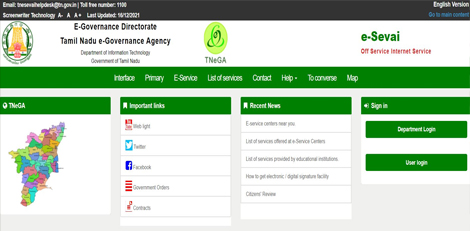
1. Visit the Portal: Login to e-Sevai Tamil Nadu http://tnesevai.tn.gov.in/ portal as Operator
2. Navigate to Service: Click on Services – Commissionerate of Municipal Administration – CMA-601 Collection of Non Tax
3. Click Proceed: On the service description page, click Proceed button
4. Enter Property Details:
– Select ULB Code (Mandatory – selects specific municipality)
– Enter either New Allotment No. or Old Allotment No. (Mandatory)
– Click Search
5. Verify Property Details: System displays:
– Owner Name and Address
– Property Type (e.g., Building)
– Property Number and Ward Number
– ULB/Municipality Name
6. Review DCB Details: System shows detailed breakdown:
– Period-wise demands (monthly and yearly)
– Service Tax amounts
– Tax Demand Amount (original due)
– Tax Collected Amount (already paid)
– Total Balance Amount (outstanding per period)
– Cumulative Balance Amount (running total)
7. Make Payment:
– Enter Amount To Be Paid (can be partial or full amount)
– Click Make Payment
8. Download Receipt: After successful payment:
– Click Get Receipt to download payment receipt
– Save/print the receipt for your records
Alternative CSC Centre Method:
Property owners may also pay non-tax dues through any Common Service Centre (CSC) where trained operators assist with:
– ULB code and allotment number verification
/>- DCB details explanation
– Payment amount calculation
– Payment processing
– Receipt download and printing
After Payment:
– Instant Receipt: Payment receipt available immediately
– Digital Record: Payment recorded in municipal database
– Proof of Payment: Downloadable receipt serves as payment proof
– No Physical Visit: Entire process completed online
Important Notes:
– Mandatory Fields: ULB Code and Allotment Number are both required for search
– Multiple Municipalities: Service covers various ULBs across Tamil Nadu (not just Chennai)
– Detailed Breakdown: System shows period-wise DCB details with cumulative totals
– Flexible Payment: Can pay any amount towards total outstanding balance
– Receipt Details: Includes property information, payment breakdown, and transaction details
– Property Types: Covers various property types including buildings, commercial establishments, etc.
– Historical Data: Shows demands from previous years with complete payment history
– Commissionerate of Municipal Administration: Service covers multiple municipal administrations across the state
Apply Online: http://tnesevai.tn.gov.in/
Assistance: Visit your nearest e-Sevai / CSC Centre
This guide is based on the Commissionerate of Municipal Administration User Manual. Government of Tamil Nadu, 2016.
by vellorecity | Nov 21, 2025 | How to apply, News
Service Code: CMW-501 | Department: Chennai Metro Water Supply & Sewerage Board
Purpose:
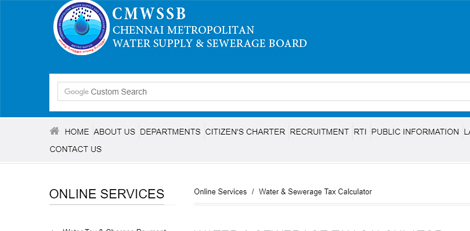
The Water and Sewerage Tax Payment service enables consumers to pay their outstanding water and sewerage taxes through the e-District portal. This service is designed for:
– Residential consumers with water connections in Chennai
– Commercial establishments with metro water services
– Property owners liable for water and sewerage charges
– Authorized representatives handling utility payments
Required Information:
Mandatory Search Criteria:
– CMC Number (either New CMC No. or Old CMC No.)
Special Requirements:
– Existing Connection: Must have an active water connection with Chennai Metro Water
– Demand History: System displays period-wise outstanding demands
– Selective Payment: Can choose specific periods to pay or pay all demands
– Surcharge Calculation: Includes applicable surcharges on overdue amounts
– Operator Login: Service accessed through authorized operator login
Step-by-Step Payment Process:
1. Visit the Portal: Login to e-Sevai Tamil Nadu http://tnesevai.tn.gov.in/ portal as Operator
2. Navigate to Service: Click on Services – Chennai Metro Water Supply & Sewerage Board – CMW-501 Water and Sewerage Tax Payment
3. Click Proceed: On the service description page, click Proceed button
4. Enter CMC Number:
– Enter either New CMC No. or Old CMC No. (Mandatory)
– Click Search
5. Verify Consumer Details: System displays:
– Customer Name and Address
– Annual Value of the property
– Counter Details (Number, Class, Category)
– Demand Period List with year-wise breakdown
6. Review Demand Details: For each period, system shows:
– Surcharge Effective From date
– Surcharge Percentage applied
– Surcharge Amount
– Demand Amount (base tax)
– Demand Total (including surcharge)
7. Select Payments:
– Check the boxes for specific periods you want to pay
– Or use selection options (All, Tax, Charges)
– System calculates Total Amount Payable
8. Make Payment: Click Make Payment button
9. Download Receipt: After successful payment:
– Click Get Receipt to download payment receipt
– Save/print the receipt for your records
Alternative CSC Centre Method:
Consumers may also pay water taxes through any Common Service Centre (CSC) where trained operators assist with:
– CMC number verification
– Demand details explanation
– Period selection guidance
– Payment processing
– Receipt download and printing
After Payment:
– Instant Receipt: Payment receipt available immediately
– Digital Record: Payment recorded in metro water database
– Proof of Payment: Downloadable receipt serves as payment proof
– No Physical Visit: Entire process completed online
Important Notes:
– Mandatory Field: CMC Number (either new or old) is required for search
– Demand Selection: Can pay selected periods or all outstanding demands
– Surcharge Application: Overdue amounts include surcharges (up to 80% as per examples)
– Receipt Details: Includes consumer information, payment breakdown, and transaction details
– Payment Flexibility: Can choose to pay partial demands by selecting specific periods
– Chennai Metro Water: Service limited to Chennai Metro Water consumers
– Existing Connection Required: Only for registered water connections
– Demand Periods: Shows historical demands with applicable surcharges
Assistance: Visit your nearest e-Sevai / CSC Centre
This guide is based on the Chennai Metro Water Supply & Sewerage Board User Manual. Government of Tamil Nadu, 2016.