
by vellorecity | Nov 19, 2025 | How to apply, News
Service Code: COC-602 | Department: Greater Chennai Corporation
Purpose:
The Collection of Professional Tax service enables professionals and businesses to pay their outstanding professional tax through the e-District portal. This service is designed for:
– Professionals and business entities liable for professional tax
– Employers responsible for deducting and remitting professional tax
– Authorized representatives handling tax compliance
– Entities registered within Greater Chennai Corporation limits
Required Information:
Mandatory Search Criteria:
– Zone Number where professional/business is registered
– Division Code of the business location
– Category of the professional/business
– Unique ID of the professional/business
Special Requirements:
– Existing Registration: Must be previously registered for professional tax
– Tax Assessment: System displays half-yearly arrears automatically
– Category Selection: Must select appropriate professional/business category
– Payment Flexibility: Can pay partial or full outstanding tax amount
– Operator Login: Service accessed through authorized operator login
Step-by-Step Payment Process:
1. Visit the Portal:
Login to e-Sevai Tamil Nadu https://tnedistrict.tn.gov.in portal as Operator
2. Navigate to Service: Click on Services – Greater Chennai Corporation – COC-602 Collection of Professional Tax
3. Enter Professional Details:
– Select Zone No. (Mandatory)
– Select Division Code (Mandatory)
– Select Category (Mandatory)
– Enter Unique Id (Mandatory)
– Click Search
4. Review Tax Information: System displays:
– Company/Professional Name and Address
– Half-Yearly Wise Arrears breakdown (shows 6-month periods)
– Total Collection Amount (already paid)
– Total Demand Amount (total tax due)
– Total Payable Amount (outstanding balance)
5. Make Payment:
– Enter Amount To Be Paid (can be partial or full amount)
– Click Make Payment
6. Download Receipt: After successful payment:
– Click Get Receipt to download payment receipt
– Save/print the receipt for tax records
Alternative CSC Centre Method:
Professionals may also pay taxes through any Common Service Centre (CSC) where trained operators assist with:
– Professional details verification
– Tax arrears calculation and explanation
– Category selection guidance
– Payment processing
– Receipt download and printing
After Payment:
– Instant Receipt: Payment receipt available immediately
– Digital Record: Tax payment recorded in corporation database
– Proof ofof Payment: Downloadable receipt serves as payment proof
– No Physical Visit: Entire process completed online
Important Notes:
– Mandatory Fields: Zone No., Division Code, Category, and Unique Id are all required for search
– Category Selection: Must choose correct professional/business category
– Arrears Display: System shows half-yearly arrears history automatically
– Flexible Payment: Can pay any amount towards outstanding tax arrears
– Receipt: Payment receipt is generated instantly after transaction
– Tax Compliance: Payment updates professional tax compliance status
– Greater Chennai Corporation: Service limited to Chennai Corporation jurisdiction
– Existing Registration Required: Only for previously registered professionals/businesses
– Half-Yearly System: Tax periods displayed as half-yearly cycles (e.g., 2014_2015_2, 2015_2016_1)
Apply Online: https://tnedistrict.tn.gov.in
Assistance: Visit your nearest e-Sevai / CSC Centre
This guide is based on the Tamil Nadu e-District User Manual (COC-602). Government of Tamil Nadu, 2016.

by vellorecity | Nov 18, 2025 | How to apply, News
Service Code: COC-601 | Department: Greater Chennai Corporation
Purpose:
The Collection of Company Tax service enables companies and businesses to pay their outstanding company tax through the e-District portal. This service is designed for:
– Registered companies operating within Chennai Corporation limits
– Business entities with existing tax assessments
– Authorized representatives handling tax compliance
– Companies with half-yearly tax obligations
Required Information:
Mandatory Search Criteria:
– Zone Number where company is registered
– Division Code of the business location
– Unique ID of the company
Special Requirements:
– Existing Registration: Company must be previously registered with the corporation
– Tax Assessment: System displays half-yearly arrears automatically
– Payment Flexibility: Can pay partial or full outstanding tax amount
– Operator Login: Service accessed through authorized operator login
Step-by-Step Payment Process:
1. Visit the Portal: Login to e-Sevai Tamil Nadu portal as Operator
2. Navigate to Service: Click on Services → Greater Chennai Corporation → COC-601 Collection of Company Tax
3. Enter Company Details:
– Select Zone No. (Mandatory)
– Select Division Code (Mandatory)
– Enter Unique Id (Mandatory)
– Click Search
4. Review Tax Information: System displays:
– Company Name and Address
– Half-Yearly Wise Arrears breakdown (shows 6-month periods)
– Total Collection Amount
– Total Demand Amount
– Total Payable Amount
5. Make Payment:
– Enter Amount To Be Paid (can be partial or full amount)
– Click Make Payment
6. Download Receipt: After successful payment:
– Click Get Receipt to download payment receipt
– Save/print the receipt for tax records
Alternative CSC Centre Method:
– Company details verification
– Tax arrears calculation and explanation
– Payment processing
– Receipt download and printing
– Technical support and guidance
After Payment:
– Instant Receipt: Payment receipt available immediately
– Digital Record: Tax payment recorded in corporation database
– Proof of Payment: Downloadable receipt serves as payment proof
– No Physical Visit: Entire process completed online
Important Notes:
– Mandatory Fields: Zone No., Division Code, and Unique Id are required for search<h
– Arrears Display: System shows half-yearly arrears history automatically
– Flexible Payment: Can pay any amount towards outstanding tax arrears
– Receipt: Payment receipt is generated instantly after transaction
– Tax Compliance: Payment updates company`s tax compliance status
– Greater Chennai Corporation: Service limited to Chennai Corporation jurisdiction
– Existing Registration Required: Only for previously registered companies
– Half-Yearly System: Tax periods displayed as half-yearly cycles (e.g., 2015_2016_1, 2015_2016_2)</h
Apply Online: Visit the official portal
Assistance: Visit your nearest e-Sevai / CSC Centre
This guide is based on the Tamil Nadu e-District User Manual (COC-601). Government of Tamil Nadu, 2016.

by vellorecity | Nov 17, 2025 | How to apply, News
Service Code: COC-401 | Department: Greater Chennai Corporation
Purpose:
The Renewal of Trade License service enables business owners to renew their existing trade licenses through the e-District portal. This service is designed for:
– Business owners with existing trade licenses
– Authorized representatives handling business compliance
– Companies registered within Greater Chennai Corporation limits
Required Information:
Mandatory Search Criteria:
– Zone Number where business is located
– Division Code of the business area
– License Number of existing trade license
Special Requirements:
– Existing License: Must have a previously issued trade license
– Arrears Information: System displays year-wise arrears automatically
– Payment Flexibility: Can pay partial or full outstanding amount
– Operator Login: Service accessed through authorized operator login
Step-by-Step Renewal Process:
1. Visit the Portal: Login to e-Sevai Tamil Nadu https://tnedistrict.tn.gov.in portal as Operator
2. Navigate to Service: Click on Services – Greater Chennai Corporation – COC-401 Renewal of Trade License
3. Enter License Details:
– Select Zone No. (Mandatory)
– Select Division Code (Mandatory)
– Enter License No. (Mandatory)
– Click Search
4. Review Arrears Information: System displays:
– Company Name and Address
– Year-wise Arrears breakdown
– Total Collection Amount
– Total Demand Amount
– Total Payable Amount
5. Make Payment:
– Enter Amount To Be Paid (can be partial or full amount)
– Click Make Payment
6. Download Receipt: After successful payment:
– Click Get Receipt to download payment receipt
– Save/print the receipt for your records
Alternative CSC Centre Method:
Business owners may also renew licenses through any Common Service Centre (CSC) where trained operators assist with:
– License details verification
– Arrears calculation and explanation
– Payment processing
– Receipt download and printing
– Technical support and guidance
After Renewal:
– Instant Receipt: Payment receipt available immediately
– Digital Record: Renewal recorded in corporation database
– Proof of Payment: Downloadable receipt serves as temporary proof
– No Physical Visit: Entire process completed online
Important Notes:
– Mandatory Fields: Zone No., Division Code, and License No. are required for search
– Arrears Display: System shows complete arrears history automatically
– Flexible Payment: Can pay any amount towards outstanding arrears
– Receipt: Payment receipt is generated instantly afafter transaction
– License Validity: Renewal updates license status in corporation records
– Greater Chennai Corporation: Service limited to Chennai Corporation jurisdiction
– Existing License Required: Only for renewal of previously issued licenses
– No Document Upload: Only payment of outstanding amounts required
Apply Online: https://tnedistrict.tn.gov.in
Assistance: Visit your nearest e-Sevai / CSC Centre
This guide is based on the Tamil Nadu e-District User Manual (COC-401). Government of Tamil Nadu, 2016.
by vellorecity | Nov 12, 2025 | How to apply, News
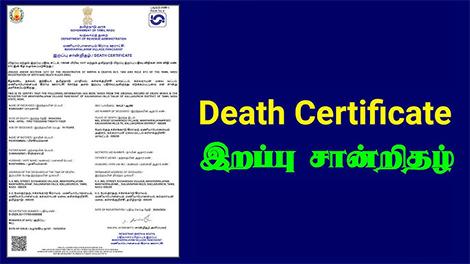
Service Code: COC-102 | Department: Greater Chennai Corporation | Service Charge: ₹30
Purpose:
The Printing of Death Certificate service enables citizens to obtain official death certificates through the e-District portal. It is designed for:
– Family members needing official death records
– Legal heirs requiring death documentation for legal purposes
– Representatives handling post-death formalities
– Citizens registered within Greater Chennai Corporation limits
Required Information:
Mandatory Search Criteria:
– Gender of the deceased person
– Date of Death of the person
– Additional Search Options: Registration Number, Person Name, Father/Husband Name, or Mother Name
Special Requirements:
– No Citizen Access Number (CAN) required for this service
– Registration Details: Must have existing death registration in corporation records
– Search Criteria: Gender and Date of Death are mandatory for search
– Payment: Required before certificate download
– Digital Certificate: Instantly generated after payment
Step-by-Step Application Process:
1. Visit the Portal: Login to [e-Sevai Tamil Nadu](https://tnedistrict.tn.gov.in) portal as Operator
2. Navigate to Service: Services – Greater Chennai Corporation – COC-102 Printing of Death Certificate
3. Search Records:
– Select Gender (Mandatory)
– Select Date of Death (Mandatory)
– Optional: Enter Registration Number, Person Name, Father/Husband Name, or Mother Name
– Click Search
4. Select Record: Click option button next to desired death record
5. Submit Application: Click Submit Application button
6. Get Certificate: Click Get Certificate after successful submission
7. Payment: Click Confirm Payment of ₹30
8. Download: Click Download Certificate to generate death certificate
Alternative CSC Centre Method:
Applicants may also obtain certificates through any Common Service Centre (CSC) where trained operators assist with:
– Record searching and verification
– Application submission
– Payment processing
– Certificate printing and collection
– Technical guidance and support
After Submission:
– Instant Processing: Certificate generation is immediate after payment
– Digital Download: Certificate can be downloaded instantly
– Print Option: Certificate can be printed directly from browser
– Receipt: Payment receipt available for download
– No Verification: No backend verification required for existing records
Important Notes:
– Search Requirements: Gender and Date of Death are mandatory for record search
– Record Availability: Service only for pre-registered death records
– Payment: ₹30 fee required before certificate download
– Instant Service: No waiting period for certificate generation
– Digital Format: Certificate generated in standard government format
– Certificate Details: Includes name, parentnt details, address, death place, age, and registration information
– Legal Validity: Certificate is officially valid for all legal purposes
– Print Quality: Ensure printer settings for optimal certificate quality
– Multiple Copies: Can generate multiple copies if needed
– Greater Chennai Corporation: Service limited to Chennai Corporation jurisdiction
– No Documents Required: Only search criteria needed, no document upload
– Verification: Certificate authenticity can be verified online at www.chennaicorporation.gov.in
Apply Online: https://tnedistrict.tn.gov.in
Assistance: Visit your nearest e-Sevai / CSC Centre
This guide is based on the Tamil Nadu e-District User Manual (COC-102). Government of Tamil Nadu, 2016.

by vellorecity | Nov 8, 2025 | How to apply, News
Service Code: COC-101 | Department: Greater Chennai Corporation | Service Charge: ₹30
Purpose:
The Printing of Birth Certificate service enables citizens to obtain official birth certificates through the e-District portal. It is designed for:
– Parents or guardians needing official birth records
– Legal representatives requiring birth documentation
– Individuals needing certified birth certificates for various purposes
– Citizens registered within Greater Chennai Corporation limits
Required Information:
Mandatory Search Criteria:
– Gender of the child
– Date of Birth of the child
– Additional Search Options: Registration Number, Child Name, Father Name, or Mother Name
Special Requirements:
– No Citizen Access Number (CAN) required for this service
– Registration Details: Must have existing birth registration in corporation records
– Search Criteria: Gender and Date of Birth are mandatory for search
– Payment: Required before certificate download
– Digital Certificate: Instantly generated after payment
Step-by-Step Application Process:
1. Visit the Portal: Login to e-Sevai Tamil Nadu https://tnedistrict.tn.gov.in portal as Operator
2. Navigate to Service: Services – Greater Chennai Corporation – COC-101 Printing of Birth Certificate
3. Search Records:
– Select Gender (Mandatory)
– Select Date of Birth (Mandatory)
– Optional: Enter Registration Number, Child Name, Father Name, or Mother Name
– Click Search
4. Select Record: Click option button next to desired birth record
5. Submit Application: Click Submit Application button
6. Get Certificate: Click Get Certificate after successful submission
7. Payment: Click Confirm Payment of ₹30
8. Download: Click Download Certificate to generate birth certificate
Alternative CSC Centre Method:
Applicants may also obtain certificates through any Common Service Centre (CSC) where trained operators assist with:
– Record searching and verification
– Application submission
– Payment processing
– Certificate printing and collection
– Technical guidance and support
After Submission:
– Instant Processing: Certificate generation is immediate after payment
– Digital Download: Certificate can be downloaded instantly
– Print Option: Certificate can be printed directly from browser
– Receipt: Payment receipt available for download
– No Verification: No backend verification required for existing records
Important Notes:
– Search Requirements: Gender and Date of Birth are mandatory for record search
– Record Availability: Service only for pre-registered birth records
– Payment: ₹30 fee required before certificate download
– Instant Service: No waiting period for certificate generation
– Digital Format: Certificate generated in standard government format
– Print Quality: Ensure printer settings for optimal certificate quality
– Multiple Copies: Can generate multiple copies if needed
– Validity: Certificate is officially valid for all purposes
– Greater Chennai Corporation: Service limited to Chennai Corporation jurisdiction
– No Documents Required: Only search criteria needed, no document upload
– Browser Compatibility: Works best with Google Chrome browser
Apply Online: https://tnedistrict.tn.gov.in
Assistance: Visit your nearest e-Sevai / CSC Centre
This guide is based on the Tamil Nadu e-District User Manual (COC-101). Government of Tamil Nadu, 2016.
by vellorecity | Nov 7, 2025 | How to apply, News
Service Code, Department Charges, and Service Charge
– Service Code: TEB-601
– Department: Tamil Nadu Generation and Distribution Corporation (TANGEDCO)
– Service Charge: Based on bill amount as below:
| Electricity Bill Amount (₹) |
Service Charge (₹) |
| Up to ₹1,000 |
₹15.00 |
| ₹1,001 – ₹3,000 |
₹25.00 |
| ₹3,001 – ₹5,000 |
₹40.00 |
| ₹5,001 – ₹10,000 |
₹50.00 |
| ₹10,001 and above |
₹60.00 |
Purpose of the Service
This service allows TANGEDCO consumers to pay electricity bills easily through the Tamil Nadu e-Sevai Portal or Common Service Centres (CSCs). It provides secure and instant online payment with a downloadable receipt for record keeping.
Required Details
– Consumer Service Number
– Registered Mobile Number
– Valid Payment Method (Debit/Credit Card, Net Banking, or UPI)
Step-by-Step Process
1. Login to the TNeGA e-Sevai Portal
https://www.tnesevai.tn.gov.in or visit a nearby CSC Centre
2. Select Service: Choose TANGEDCO Services – TEB-601 Electricity Bill Payment
3. Enter Consumer Number and verify bill amount and details displayed
4. Confirm Payment: Select payment mode and make the payment securely
5. Download Acknowledgement: Save or print the payment receipt for reference
Important Notes
– Full bill payment only – partial payments are not allowed
– Instant receipt available immediately after payment confirmation
– Secure transaction: All payments processed through authorized payment gateways
– CSC Assistance: Applicants can visit nearby CSCs for help with bill payment
Disclaimer: The details mentioned in this document are intended for reference only and are based on publicly available data. Official information, rules, and procedures may be subject to changege. Applicants are advised to verify with TANGEDCO or the Tamil Nadu e-Sevai portal before proceeding.